
Export GEDCOM Files from Any Software to Legacy Family Tree
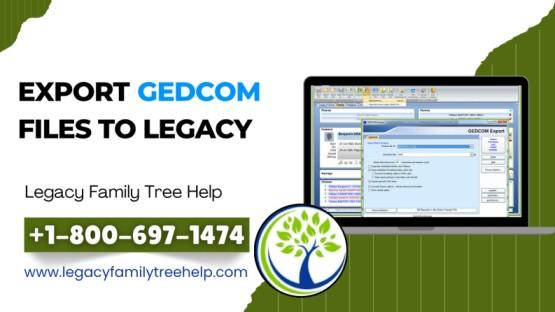
Are you looking to Export GEDCOM Files to Legacy Family Tree? If you’re switching from another genealogy software, the most reliable way to transfer your family history data is by using a GEDCOM file. GEDCOM (Genealogical Data Communication) is the universal format that allows easy data migration between genealogy programs.
To successfully export GEDCOM files to Legacy, you first need to export your data from your current genealogy software. Once the GEDCOM file is created, you can import it directly into Legacy Family Tree using the built-in Import Wizard.
Why Use GEDCOM for Data Transfer?
Using a GEDCOM file ensures that your family tree data, including names, relationships, sources, and notes, is transferred accurately. It is supported by most popular genealogy software like Family Tree Maker, RootsMagic, and Ancestral Quest.
Steps to Export GEDCOM Files from Other Programs
Although each program has slightly different steps, the process is generally similar:
- Open your genealogy software.
- Go to the File menu and select Export.
- Choose GEDCOM (.ged) as the export format.
- Select GEDCOM version 5.5 for best compatibility.
- Choose the ANSEL character set if available.
- Include important data like notes, sources, and media links.
- Save the file to your desired location.
Popular programs such as Family Tree Maker, RootsMagic, Reunion, and MyHeritage Family Tree Builder all support GEDCOM export with similar settings.
How to Import GEDCOM into Legacy
Once your GEDCOM file is ready, follow these steps to import it into Legacy:
- Open Legacy Family Tree.
- Click on File > Import From.
- Select GEDCOM File.
- Use the Import Wizard to guide you through the process.
- Review settings and complete the import.
The import process is straightforward, and Legacy ensures your data is structured properly.
Best Practices for Smooth GEDCOM Export
- Always back up your data before exporting
- Use standard GEDCOM settings (5.5 version)
- Double-check included data (sources, notes, media)
- Test the file after importing into Legacy
Conclusion
Learning how to Export GEDCOM Files to Legacy Family Tree is essential for anyone switching genealogy platforms. By following the correct steps and using proper settings, you can easily transfer your complete family history without losing important data.

 English
 Arabic
 French
 Portuguese
 Deutsch
 Turkish
 Dutch
Dutch
 Italiano
 Russian
 Romaian
 Portuguese (Brazil)
 Greek
Greek